LPB Piso WiFi — Login, Pause Time & Troubleshooting
One complete guide to LPB Piso WiFi: what the system is, how its portal at 10.0.0.1 works, how to log in, pause and resume your time, what the limits are, and how to fix the problems LPB users meet most.
LPB is one of the software systems that runs Piso WiFi vending machines. As a customer you use it exactly like other systems: connect to the machine's WiFi, open http://10.0.0.1, pay, and manage your session on the portal page — including Pause Time, where the operator has enabled it. Everything below is the LPB version of that routine, with LPB's own habits and limits spelled out.
On this page
What LPB Piso WiFi is
LPB is one of the platforms — the software — that operators install on Piso WiFi vending machines, and one of the most common ones in sari-sari store and small-community setups. The hardware is a vendo box with a coin slot and a small controller board; LPB is what shows the portal page, converts coins, voucher codes and (on machines that offer it) e-wallet payments into minutes, tracks each customer's session and timer, and gives the owner an admin area for rates and settings.
For customers, "LPB Piso WiFi" mostly means a particular look and behaviour of the session page: a straightforward dashboard showing your remaining time, with pause and resume controls where the operator has switched them on. Almost everything else — how you connect, where the portal lives, why a paused session can disappear after a brownout — follows the shared Piso WiFi pattern explained on the homepage. This page focuses on what is specific to LPB.
How the LPB customer portal works
The LPB customer portal is the machine's local page at http://10.0.0.1. It exists only on that machine's own WiFi network — it is not a website on the internet, and this site (or any site) cannot open or control your session for you. When you join the network, your phone usually pops the portal up by itself (the captive-portal sign-in); if it doesn't, type the address into your browser's address bar yourself.
On the portal you can see your session status and remaining time, pay or top up where the machine offers it, and pause or resume. The portal recognises your session by your device on typical LPB setups, which is why your time only appears on the phone that paid — the same rule as other Piso WiFi systems.
LPB login: reaching your session
"LPB login" simply means reaching your session page on the LPB portal. There is usually no username or account for customers:
- Connect to the LPB machine's WiFi
Join the network name posted at the store, on the same phone you will pay with. Turn mobile data off so the phone stays on this network.
- Use the sign-in pop-up, or open http://10.0.0.1
If the pop-up doesn't appear, open Chrome or your usual browser and type the address in the address bar — not a search box. Five groups of numbers (10.0.0.0.1) is a common typo; the real address has four.
- Pay or enter your voucher
Insert coins at the machine, or type the voucher code bought from the store into the portal, following the options your machine shows. Your session — and your timer — starts when payment registers.
- Check your session page
You should see your remaining time and session status. This page is where Pause and Resume live. If you instead see a fresh login page while you have a running session, you are likely on the wrong network or a different phone — work through the 10.0.0.1 Login guide.
LPB Pause Time
LPB supports Pause Time: on the session page, tap Pause and your countdown stops, with your remaining minutes held on the machine until you resume. Two LPB-specific things to know:
- Availability and limits are the operator's settings. The machine's owner switches pause on or off in the LPB admin area and, on many setups, sets how long a session may stay paused. That is why one LPB machine pauses happily for hours while another ends paused sessions sooner — same platform, different settings.
- The label and layout vary a little by version. Depending on the LPB build and how the operator configured the portal, the control may read Pause or Pause Time and may sit under the timer or in a small menu — scroll the full session page before concluding it is missing. If it truly is not there, the causes are the same as everywhere: no Pause button — the fix page.
The general pause routine — same phone, same network, confirm the timer stopped — is the step-by-step on the homepage; it applies to LPB unchanged.
How to resume on LPB
- Return to the same machine's range, with the same phone
Your paused session lives on that machine and is tied to your device on typical setups — no other phone, and no other machine, can resume it.
- Reconnect and open http://10.0.0.1 again
Your paused session page should appear, showing the time you saved.
- Tap Resume
The countdown restarts from where it stopped. No Resume option usually means the paused session has already expired under the operator's pause limit, or the machine restarted while you were away — see the limits section below and the session expired guide.
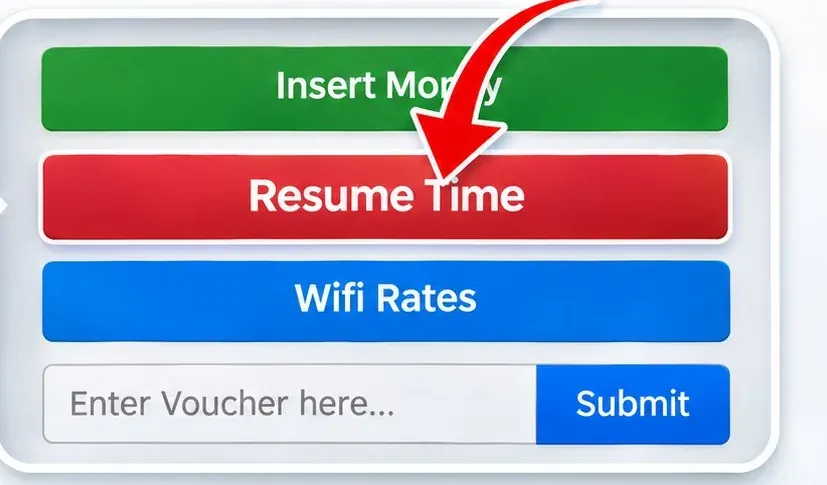
LPB settings and limitations
- Sessions are stored on the machine itself on typical LPB setups. A reboot, a long brownout, or the operator restarting the system can clear paused and active sessions, because session time is stored on the machine itself, not in the cloud.
- Pause limits are operator-set. How long you may stay paused, and whether pausing is offered at all, are admin choices, not platform guarantees.
- Menus differ by firmware and version. Two LPB machines can show slightly different portal layouts and labels. Treat any screenshot you find online (including ours) as representative, not exact.
- Rates and payment options are per machine. Coin rates, voucher denominations and e-wallet availability are set by each operator.
Common LPB problems
- The LPB portal (10.0.0.1) won't open
- No Pause button on my LPB session page
- My paused LPB session disappeared
- Connected to the LPB WiFi but no internet
The causes are rarely LPB-specific: wrong network, mobile data or a VPN taking over, https:// typed instead of http://, an expired session, or pause switched off by the operator. Each fix page above works through its checks in order.
Customer vs owner/admin on LPB
Customers can:
- Open the portal at 10.0.0.1 and see their own session.
- Pay by the methods the machine offers.
- Pause and resume their own session, where enabled.
Only the owner can (LPB admin):
- Switch Pause Time on or off and set pause limits.
- Set rates and generate vouchers.
- Change any machine or admin settings.
The LPB admin area is generally reached at 10.0.0.1/admin while connected to the machine, and belongs to the owner alone — there is no universal admin password, and this site never publishes defaults. Owner-side detail: 10.0.0.1 Admin, Explained and the Vendo Owner Guide.
Questions about LPB
Yes, LPB supports pausing — but the operator decides whether it is switched on for customers and how long a session may stay paused. If your session page has no Pause button, the most likely reason is that the owner has not enabled it on that machine.
http://10.0.0.1 — typed in your browser's address bar while connected to that machine's WiFi. It is a local address: it will not open from mobile data, home WiFi, or any other network.
Usually one of three causes: the operator's pause limit ran out, the machine restarted or lost power (sessions are stored on the machine on typical setups), or you are checking from a different phone or network. The checks are in the session expired guide.
No — they are four different systems that run Piso WiFi machines. The customer routine is alike on all of them; pause behaviour, menus and session handling differ in detail. Side by side: platform comparison.
No. The admin area belongs to the machine's owner, there is no universal admin password, and this site does not publish defaults. Session problems are solved from the customer side — the troubleshooting guides — or by asking the operator.